Troubleshooting · Startup
DSMapStudio Won't Open: Troubleshooting Guide
DSMapStudio Won't Open: Troubleshooting Guide
"Won't open" is two completely different failures wearing the same description, and picking the right one is 90% of the fix. Either the process never starts — you double-click DSMapStudio.exe, nothing happens, and DSMapStudio never appears in Task Manager — or it starts and dies, flashing a window or a loading state before closing, usually leaving a log behind. The first is a missing native runtime. The second is something the log will name outright. Don't apply the second's fixes to the first; they won't touch it.
First, decide which failure you have
Double-click DSMapStudio.exe and watch Task Manager (Ctrl+Shift+Esc). No DSMapStudio process ever appears, or it flickers in for a split second and vanishes with no log file: that's the no-window case. A process starts, a window or loading screen shows, then it closes (often dropping a log file in the folder): that's the crash case.
One gate before either: confirm DSMapStudio.exe actually sits in the extracted folder next to its .dll files. If you instead see a src folder, a .sln file, and .cs files, you extracted the source code, not the program — fix that at no .exe file found before going further.
Nothing happens at all (no window)
DSMapStudio is a .NET 7 app with native (C++/Vulkan) dependencies, and those load before any window is drawn. When one is missing the process aborts so early there's no UI and often no managed error — exactly the "double-click, nothing happens" symptom. In order of how often it's the cause:
- Missing Visual C++ x64 Redistributable. It needs the Microsoft Visual C++ 2015–2022 Redistributable (x64) — the x86 build does nothing for it. This is the single most common no-window cause. Install
vc_redist.x64.exe(aka.ms/vs/17/release/vc_redist.x64.exe) and reboot. - Missing .NET 7 Desktop Runtime. Specifically the Desktop Runtime (x64) — not ASP.NET, not the plain runtime, not the SDK. The plain .NET runtime is the one people install by accident and it won't launch a WPF/desktop app.
- Extracted into a protected folder. Inside
C:\Program FilesorProgram Files (x86), Windows blocks the config/log writes it does on startup and it can die before drawing UI. Move the whole folder to something writable likeC:\Modding\DSMapStudio\.
Install both runtimes (it needs both, and missing either produces the same silent failure), reboot, retry.
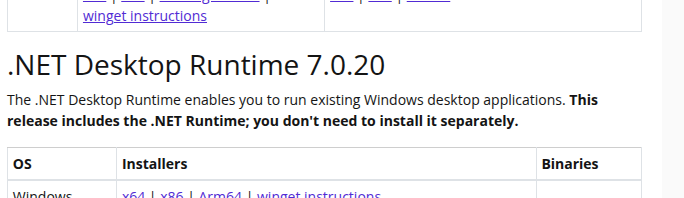
Install the .NET Desktop Runtime specifically — not ASP.NET Core, not the plain .NET Runtime, not the SDK. Full setup: installation guide.
It opens, then crashes
If a window or loading screen appears and then dies, the program got far enough to record why. Usual suspects:
- Antivirus quarantined a DLL. DSMapStudio bundles libraries for reading and injecting game files; Defender and others sometimes flag them. A launch-then-instant-death is the signature. Check quarantine, restore the file, and exclude the whole DSMapStudio folder.
- Stale config from an older build. A config left by a previous version can crash startup. Delete the tool's local config/settings in the program folder and let it regenerate — your projects live in their own directories and aren't touched.
- Vulkan init failure. If it dies specifically while initializing graphics, the GPU doesn't meet the Map Editor's Vulkan 1.3 bar — see the Map Editor note below.
Read the crash log — it usually names the cause
This is the step people skip and the one that ends the guessing. After a post-launch crash, DSMapStudio writes a log in or beside its program folder; open the newest one and read the last lines, where the exception that killed it lands:
- "missing assembly" / a named
.dll→ wrong or uninstalled runtime (back to Visual C++ / .NET above). - A Vulkan or device-creation error → GPU below the Map Editor requirement.
- An access-denied or path error → it can't write where you extracted it (protected folder).
Match that final exception to a row below instead of trying fixes at random.
Diagnostic table
| Symptom | Cause | Fix |
|---|---|---|
| No window, no process, no log | Missing Visual C++ x64 runtime | Install VC++ 2015–2022 x64, reboot |
| Process flickers then vanishes | Missing/wrong .NET 7 Desktop Runtime (x64) | Install the Desktop Runtime specifically |
| Launches then instantly closes | Antivirus quarantined a DLL | Restore from quarantine, exclude the folder |
| Crash log mentions Vulkan/device | GPU lacks Vulkan 1.3 (often Intel iGPU) | Run the Low Requirements executable |
| Crashes only after upgrading versions | Stale config from old build | Delete the tool's config file, relaunch |
| "Windows protected your PC" prompt | SmartScreen on an unsigned app | More info → Run anyway (this isn't a crash) |
No .exe to launch at all | You downloaded the source zip | Get the correct release |
When only the Map Editor won't render
A frequent variant that isn't a startup failure at all: DSMapStudio opens, Param and Text editors work, but the 3D Map Editor is black or crashes. That's the GPU. The viewport needs Vulkan 1.3 (NVIDIA Maxwell/900 series or AMD Polaris/400 series and newer); Intel integrated graphics can't drive it. Use the Low Requirements executable from the same zip for params and text, and see Intel GPU: no Vulkan support.
Once it launches clean, point it at your game with the first-project guide. If it opens but throws "Unknown DCX format" when loading a game file, that's patch compatibility, not startup — see fixing Unknown DCX format.