
Elden Ring · Intermediate Guide
How to Merge regulation.bin for Elden Ring with DSMapStudio
How to Merge regulation.bin for Elden Ring with DSMapStudio
Install two Elden Ring mods that both modify regulation.bin and dropping the second on top of the first silently deletes every change the first made — no merge prompt, no warning, one of your mods just stops working. regulation.bin holds almost all of Elden Ring's gameplay params (weapon stats, drops, shops, NPC behavior) in one packed file, so two mods touching it almost always collide. The fix is the CSV export/import workflow the community settled on: export each mod's changed rows and import them onto one shared base.
⚠️ Compatibility first. DSMapStudio v1.11.1 does not support Elden Ring patch 1.12+ (post–Shadow of the Erdtree). On those patches the param layout changed and v1.11.1 either refuses to open
regulation.binor throws "Unknown DCX format." On 1.12 and later, merge in Smithbox — the actively maintained fork — instead; it also drops the UXM-unpacking prerequisite. Check this before you spend an hour on a tool that can't read your file.
What you need
Merging params is file-handling, not coding, but the prerequisites are hard — missing any one is the usual reason a merge comes out empty:
- DSMapStudio v1.11.1 — the release zip from the download page, not the "Source code (zip)" GitHub auto-generates (it has no runnable build, and beginners confuse the two constantly).
- A non-Intel GPU only if you need the Map Editor. The Param Editor used here runs on most hardware; Intel integrated graphics can't init the Vulkan viewport, so on an iGPU use the Low Requirements executable.
- An unpacked copy of Elden Ring via UXM Selective Unpack — DSMapStudio reads unpacked files, not the packed Steam install. Unpack at least
param,map,chr,msg. - The mods to combine, each providing a
regulation.binor a.csv. - A vanilla
regulation.binfrom your exact game version as the merge base. The step most tutorials skip and the one that breaks merges silently. - ~20–30 minutes for a two-mod merge, +10 per extra mod.
Why mods conflict — and why CSV fixes it
regulation.bin is one encrypted, compressed container of hundreds of param tables. Each is a spreadsheet: rows by numeric ID, columns of values. EquipParamWeapon = weapon stats; ItemLotParam = enemy/chest drops; ShopLineupParam = merchant inventory. "Changing a weapon" means editing one row in EquipParamWeapon.
The conflict is structural: both mods ship a complete regulation.bin, so whichever you copy in last wins entirely — the other's edits vanish even on rows the two never both touched. CSV breaks that: DSMapStudio exports any table, or just its modified rows, to plain text (ID,value,value,..., one row per line). Because a CSV carries only the rows you export, you pull just Mod A's changed rows out and import them onto a regulation.bin that already has Mod B's — both sets coexist. "Merging" really means "importing each mod's modified rows onto a shared base."
One more concept: param definitions. DSMapStudio interprets the raw bytes through paramdef files tied to a game version. That's why a regulation.bin from an incompatible patch reads as nonsense even when it opens — the columns no longer line up with the definitions v1.11.1 ships. Keeping every mod on one matching base isn't a preference; it's what makes the merge valid.
Method 1 — CSV import (recommended)
Use when a mod ships a .csv alongside or instead of regulation.bin — common for balance and item mods on Nexus. Fastest path, because the author already isolated their changed rows.
- New Project. Set a name, point Project Directory at an empty folder for the merged mod, and Game Directory at your unpacked Elden Ring files — not the Steam folder. Selecting the packed path leaves the Param Editor empty.
- Game Type → Elden Ring, explicitly. The dropdown defaults to whatever you opened last; if it still says Dark Souls 3 or AC6, the definitions won't match and every value reads as garbage.
- Create, then open the Param Editor tab.
- File → Import → Param CSV, pick the mod's
.csv. - Choose "Replace existing rows / add new rows" so it overwrites matching IDs and appends new ones. Confirm.
- Repeat 4–5 per additional CSV, one at a time so you can see which rows each touched.
- File → Save Params (
Ctrl+S) — writes the mergedregulation.bininto the project'smodsubfolder.
Verify: open the targeted table (e.g. EquipParamWeapon), type modified in the search box, and confirm the mod's expected rows appear. Nothing there means the import didn't apply — see the error table. Note that importing a CSV exported against a different base version still "succeeds" with no error, but the rows land offset and the game crashes on load — always confirm the CSV's source matches your base version.
Method 2 — merging two regulation.bin files
Use when both mods ship only regulation.bin. Extract each mod's changes back into CSV yourself, then import onto a clean base.
- Open Mod A in a temporary project (Game Directory at Mod A's
regulation.binin an unpacked layout), Game Type → Elden Ring. - Isolate Mod A's changes. In a table the mod edited, apply the Modified filter (below), select all visible rows (
Ctrl+Awithin the filtered view), File → Export → Param CSV → Selected Rows, save asmodA_EquipParamWeapon.csv. Repeat for every table Mod A touched.
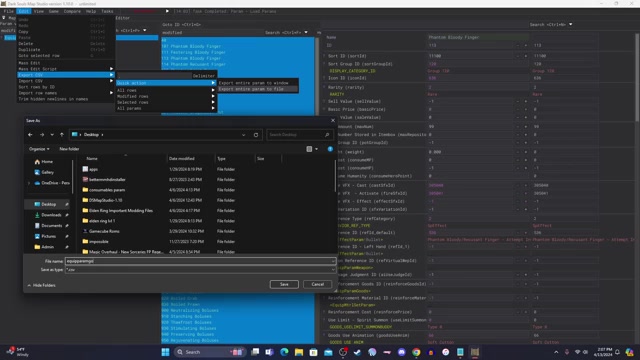
Exporting a mod's modified rows to a .csv file — the small CSV you then import onto the shared base. Frame from EucliFox's merge tutorial.
3. Open your base project — built on a vanilla regulation.bin from your exact game version, the shared foundation both mods sit on. The CSV method only works when every mod merges onto one identical vanilla base; mixing bases is the top cause of post-merge crashes.
4. Import Mod A — File → Import → Param CSV for each CSV, "Replace / add rows."
5. Repeat for Mod B in its own temporary project, then import onto the base.
6. Resolve overlap. If both mods modified the same row ID, the second import overwrites the first with no warning — see the conflict section to decide the winner before importing.
7. Save (Ctrl+S).
If you also merge animations later, follow the ordering rule: merge params first, then TAE/animation files — param edits are the foundation other content references.
Finding what each mod changed — the Modified filter
The single most important tool here, because "which of these 10,000 rows did the mod touch?" is otherwise unanswerable by hand. In the Param Editor, click the row-search box and type modified: DSMapStudio compares every row against the vanilla baseline for the selected game and hides everything that matches, leaving only the mod's changes. Use it three ways — see a mod's footprint before merging, select-and-export exactly those rows (Method 2 step 2), and verify an import landed (Method 1 verify). Run it table by table (EquipParamWeapon, then ItemLotParam, then ShopLineupParam) to map a mod with no documentation.
Resolving conflicts
A real conflict is when both mods edit the same row ID in the same table — both rebalancing the same sword in EquipParamWeapon. Because import overwrites, decide the winner deliberately rather than letting load order decide. General rule: import the less specialized mod first, the more specialized one last, so the mod you care about most wins on shared rows. For rows where you want both sets, hand-merge the columns: open the row in the base after importing Mod A, then copy in the specific columns Mod B changed.
| Conflict | What's colliding | Resolution |
|---|---|---|
EquipParamWeapon, same weapon ID | Two mods rebalance one weapon's damage/scaling | Pick an authority, or hand-merge — damage columns from A, scaling from B |
ItemLotParam, same drop ID | Two mods change one enemy's drops | Choose per-enemy; these rarely combine cleanly |
ShopLineupParam, same shop row | Two mods add to the same merchant slot | Re-ID one mod's additions to unused rows so both stock coexists |
| New rows with identical IDs | Both invented a custom item at the same ID | Re-number one mod's new rows to a free range; update references |
| Same row, different columns | A edits damage, B edits weight on one weapon | Hand-merge — both fit one row; copy B's weight onto A's imported row |
Worked example: Mod A buffs the Uchigatana's poise damage in EquipParamWeapon; Mod B changes the same Uchigatana's weight and stat requirements. These don't conflict at the value level — different columns. Import Mod A, open that row in the base, copy Mod B's weight and stat columns onto it (check each against Mod B's Modified view). The result is one Uchigatana row carrying both intentions. A genuine conflict — both setting the same column to different values — can't be hand-merged; pick the value you want and accept one mod loses that field. Document which mod won each contested row in a text file beside your merge; re-merging after a patch, you'll need it.
Method 3 — DSMSPortable (command-line automation)
For merging the same set repeatedly — modpack maintainers, or re-merging after every patch — DSMSPortable applies CSVs to a regulation.bin without the GUI, so a full multi-mod merge becomes one batch file you re-run whenever a mod updates. A minimal invocation:
DSMSPortable.exe regulation.bin -G ER -C+ EquipParamWeapon:modA_weapons.csv
Operate on regulation.bin, game ER (Elden Ring, -G), apply (-C+ = add/replace) modA_weapons.csv to EquipParamWeapon. Chain multiple -C+ to apply several mods in one pass. It ships alongside DSMapStudio on the releases page.
→ Full walkthrough: Automating param merges with DSMSPortable.
Back up before you merge
Copy your current regulation.bin somewhere safe first — a bad merge can corrupt the file and there's no undo across a save. The live file lives in your ModEngine2 mod folder, not the Steam install. Name the backup descriptively — regulation_pre-merge_2026-06-09.bin beats regulation - Copy.bin three merges deep. Archive the vanilla regulation.bin for your version separately too; it's your merge base, and re-extracting it after a patch is tedious.
Testing
Validate most of a merge without launching the game: reopen the merged project, run the Modified filter on each table you touched, and confirm every mod's expected rows are present together. Then test through ModEngine2 — point its config at the merged mod folder, launch, and check the specific changes each mod promised (pick up the rebalanced weapon, kill the enemy whose drop changed, visit the edited merchant). A change missing in-game but present under the Modified filter is almost always ModEngine2 config, not the merge.
Common errors
| Error | Cause | Fix |
|---|---|---|
| "Can't read regulation.bin" | Version mismatch — file from a patch v1.11.1 doesn't support | Confirm it's pre-1.12; for post-SotE, use Smithbox |
| CSV import shows no changes | Wrong Game Type, or CSV from a different base version | Set Game Type → Elden Ring, re-import; match the CSV's source version |
| Crashes after merge | Mods on different vanilla bases, or unresolved conflict | Re-merge all onto one identical vanilla regulation.bin; resolve overlapping IDs |
| "Unknown DCX format" | File from a post-SotE (1.12+) patch | Use Smithbox — troubleshooting |
| Changes not in-game | ModEngine2 not pointed at the merged folder | Edit ModEngine2 config; confirm the merge with the Modified filter |
| Param Editor opens empty | Game Directory set to packed Steam files | Recreate the project pointing at the UXM-unpacked folder |
Which version supports which patch
A mismatched regulation.bin fails silently far more often than it errors, so match tool to patch before you start:
| DSMapStudio version | Elden Ring patch | Compatible? |
|---|---|---|
| v1.11.1 | 1.12+ (post-SotE) | ✗ |
| v1.11.1 | Pre-1.12 | ✓ |
| v1.10 | 1.10.x | ✓ |
| Smithbox (current) | 1.12+ (post-SotE) | ✓ |
On 1.12+, v1.11.1 is the wrong tool — last released June 2024, never updated for the post-SotE format. Smithbox reads current patches and drops the UXM step; it's the continuation of the same codebase, and the CSV concepts here transfer directly. On an old patch, v1.11.1 is fully capable; on a current one, keeping params updated after a patch is the next read.
You've merged into one mod carrying every mod's changes onto a shared base. Test through ModEngine2, verify with the Modified filter if anything looks off, and read updating params after a patch so your merge survives the next update. Decode error? Unknown DCX format.
Watch it in action
Community video guides this article draws on — credit to their creators.