Editors · Map Editor
DSMapStudio Map Editor Guide
DSMapStudio Map Editor Guide
The Param Editor changes numbers; the Map Editor changes space — where every enemy stands, where each object sits, and where the invisible trigger volumes that drive events are placed in a game's 3D world. It opens a level as a navigable 3D scene and lets you move, add, duplicate, and configure everything in it. Custom enemy placements, randomizer layouts, boss arenas, and recovered cut content all get built here.
One hard gate up front: the Map Editor needs a Vulkan 1.3 GPU to render its viewport, so unlike the Param and Text editors it does not run on Intel integrated graphics. Not set up yet? It needs the same unpacked-game baseline as everything else — first project setup.
What it edits — the MSB tree
Each level is one MSB file (Map Studio Binary). Open a map and you're editing its MSB, shown as a tree of categories:
- Parts — the physical contents: map pieces (geometry), objects/assets, enemies and characters, player spawn points, collision, and navmesh. Most placement work happens here.
- Regions — invisible volumes and points: trigger areas, spawn points, warp targets, markers that events reference.
- Events — map-level event data and groupings that tie into the game's event scripting.
Every object has a position, rotation, and properties — and many carry an entity ID that the game's event scripts use to address them. Editing a map means selecting objects in the tree or viewport and changing where they are and what they reference.
The Vulkan requirement is non-negotiable
The viewport is a real 3D scene and needs a Vulkan 1.3 GPU — NVIDIA Maxwell (900 series) or AMD Polaris (400 series) and newer. Intel integrated graphics can't provide it, so on an iGPU the viewport stays black while Param and Text editors work fine. There's no software-rendered fallback, and the Low Requirements executable deliberately ships without the Map Editor for this exact reason. A black viewport is the GPU gate, not a bug — Intel GPU: no Vulkan.
Interface — three regions
- Left: the map list (load a map by its map ID) above the loaded MSB tree of Parts / Regions / Events.
- Center: the 3D viewport. Selecting an object here highlights it in the tree and vice-versa, and a transform gizmo appears on the selection.
- Right: properties — position, rotation, model reference, param references (an enemy's
NpcParam), draw/display groups, and entity ID.
Select an object, transform it with the gizmo, edit its fields on the right.
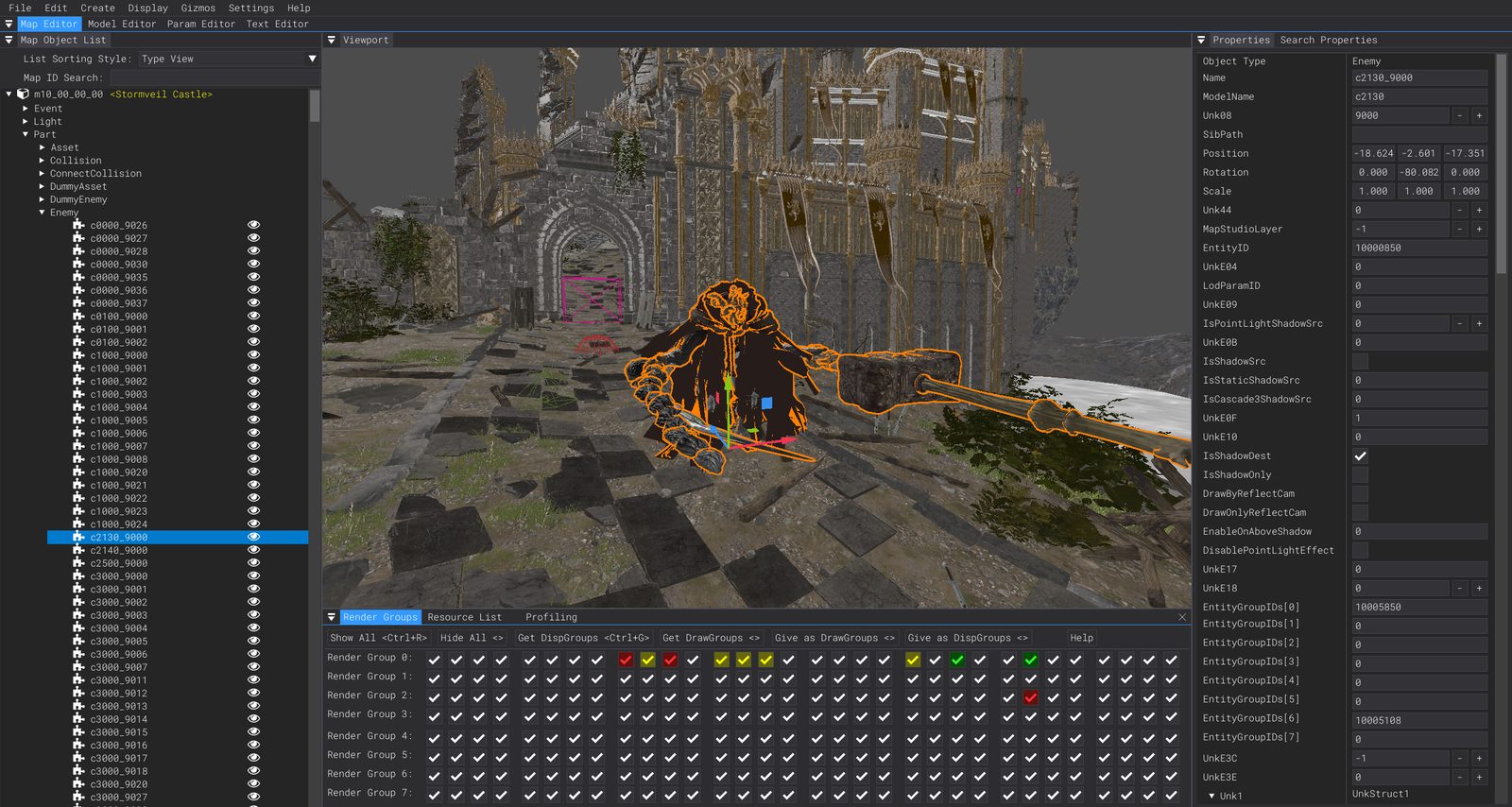
The Map Editor's three regions: object tree (left), the Vulkan 3D viewport (center), properties (right).
Navigation and controls
Defaults below — they're rebindable, and the in-app keybind menu is the authoritative list for your version:
| Action | Control |
|---|---|
| Look around | Hold Right Mouse Button + move the mouse |
| Move camera | W / A / S / D while holding RMB |
| Move up / down | Q / E while flying |
| Move faster | Hold Shift |
| Frame selected object | F (snaps the camera to the selection) |
| Translate gizmo (move) | W when not flying |
| Rotate gizmo | E when not flying |
| Duplicate selected | Ctrl + D |
| Delete selected | Delete |
| Undo / Redo | Ctrl + Z / Ctrl + Y |
The one distinction that makes the viewport stop fighting you: camera movement only happens while the right mouse button is held — let go and W/A/S/D act on the gizmo instead.
Core operations
Each has its own guide:
- Place enemies — add/relocate enemies, set model and
NpcParam, assign a unique entity ID. - Entity IDs — what they are, formatting, group IDs, the duplicate-ID trap.
- Duplicate objects — copy parts within a map or across maps.
- Draw groups & display groups — control what renders where so placed objects aren't invisible.
- Map IDs — the
mAA_BB_CC_DDnaming scheme.
How it ties into the other editors
Map editing rarely stands alone. An enemy you place references an NpcParam row in the Param Editor for its stats, and its entity ID is what the game's event scripts (EMEVD) use to act when it dies or spawns. One "add a boss" change can touch the Map Editor (placement, entity ID), the Param Editor (its stats), and event scripting (what its defeat triggers). The Map Editor is the spatial half.
Start hands-on with placing enemies, get the foundation with entity IDs, or — if the viewport won't render — clear the Vulkan requirement first. Not set up? Installation and first project.
Watch it in action
Community video guides this article draws on — credit to their creators.