Param Editor · CSV
DSMapStudio CSV Export and Import Guide
DSMapStudio CSV Export and Import Guide
Editing one weapon in the Param Editor is quick. Editing two hundred one field at a time is not — and that's CSV's job. DSMapStudio exports any param table to plain-text CSV you open in a spreadsheet or text editor, change in bulk, and import straight back into regulation.bin. The same feature lets mod authors ship a tiny .csv of just their changed rows instead of a whole regulation.bin, which is what makes row-level merging possible. (Combining two mods specifically? This is the mechanism behind the merge regulation.bin guide — learn the tool here, get the recipe there.)
Why CSV
- Bulk edits. Multiply every weapon's damage, zero a stat across a table, paste a column of new values — trivial in a spreadsheet, tedious row-by-row.
- Sharing. A CSV of modified rows is a few kilobytes of text. Nexus pages often ship exactly this so users import the changes instead of overwriting their
regulation.bin. - Merging. A CSV can carry only the rows you exported, so one mod's changed rows import on top of another mod's file — coexisting instead of overwriting.
It's text, so it's also diff-able and version-controllable once a mod grows.
Export
- Select the param table (e.g.
EquipParamWeapon). - Decide scope. Whole table: leave it unfiltered. Only your changes: type
modified, then select the filtered view (Ctrl+A). - File → Export → Param CSV — use Selected Rows for a subset, or export the full param.
- Save it, named after the param and mod (
myMod_EquipParamWeapon.csv), so a folder of exports stays readable.
One file per table keeps imports unambiguous.
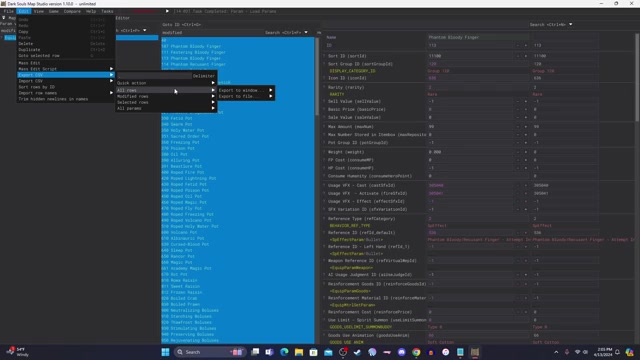
Export CSV → pick Selected rows (or Modified rows) to export only your changes. Frame from EucliFox's merge tutorial.
The CSV structure
Comma-separated text. The first column is the row ID, then the row's fields in column order, with a header row naming each field. One line = one row:
ID,Name,originValue,weight,attackBasePhysical,...
1000000,Dagger,-1,14,73,...
1010000,Parrying Dagger,-1,15,72,...
Two rules follow: the ID column is the key DSMapStudio uses to match a row back — never blank, reorder, or reformat it; and the field columns must keep their original order and count — deleting or shuffling columns breaks the mapping. Change values freely; treat the structure (header, ID column, column order) as fixed.
Editing in Excel or a text editor — the ID trap
Any spreadsheet (Excel, LibreOffice Calc) or plain text editor (Notepad, VS Code) works. Text editor is safest for small tweaks; a spreadsheet wins for column math. But:
⚠️ Excel corrupts row IDs if you just double-click the CSV. Param IDs are large numbers (
1000000,10000000), and Excel auto-converts them to scientific notation (1E+06), dropping precision. Import the row back and the IDs are wrong — a silent corruption you won't see until the game misbehaves: a default-settings Excel re-import lands scientific-notation IDs as wrong rows rather than throwing an error, so it's easy to miss. Avoid it: in Excel use Data → From Text/CSV and set the ID column type to Text before loading, or edit IDs in a plain text editor. LibreOffice Calc shows the same prompt — set the ID column to "Text" there too.
When saving, keep it as CSV (comma-delimited), UTF-8. Don't save .xlsx and rename it, and don't let a locale setting switch the delimiter to semicolons — DSMapStudio expects commas.
What you can and can't change
| Field kind | Editable? | Watch out |
|---|---|---|
| Plain values (damage, weight, HP, drop chance) | Freely | The bulk of what you edit |
Reference IDs (a SwordArtsParam skill, an ItemLotParam drop) | Yes | Must point at a row ID that actually exists, or you get a dangling reference |
| Enums / flags (0/1, type codes) | Within range | An out-of-range value can crash or do nothing |
The structure itself — header, ID column, column order and count — is never something you change. Edit values inside the grid; leave the grid's shape alone.
Worked example — buff every weapon by 10%
The case that's painful in the UI and trivial in CSV:
- Select
EquipParamWeapon, leave unfiltered, File → Export → Param CSV for the whole table →weapons.csv. - Open with Data → From Text/CSV, ID column = Text.
- Find the base physical attack column (e.g.
attackBasePhysical). In a helper column,=ROUND(thatCell*1.1, 0)for every row, then paste the results back over the original column as values (not formulas). - Delete the helper column so the structure matches, save as CSV UTF-8.
- In DSMapStudio:
EquipParamWeapon→ File → Import → Param CSV → Replace existing / add new rows → confirm. - Type
modified— every weapon now shows modified with its boosted value.
Export → spreadsheet math → paste values → import handles any across-the-board change. (For a rule like "×1.1" with no export at all, mass edit is faster.)
Import
- Select the same param the CSV came from (
EquipParamWeaponCSV →EquipParamWeapon). Wrong table is a common mistake. - File → Import → Param CSV, pick the
.csv. - Replace existing rows / add new rows overwrites matching IDs and appends new ones — the usual choice. Confirm.
- Verify with
modified, then save (Ctrl+S) to write into the project'sregulation.bin.
"Export all" vs "export modified"
- All rows dumps the entire table — thousands of mostly-vanilla rows. Use for a full snapshot or whole-table math.
- Modified rows (filter
modified, select, Export → Selected Rows) is a small CSV of only your changes. This is what you share and what you merge — importing it won't touch rows you didn't change.
For distribution and merging, always export modified only. A full-table CSV imported over someone else's mod would overwrite their rows with vanilla values.
Batch importing several CSVs
A mod shipping several CSVs (one per table) imports one table at a time: select EquipParamWeapon, import its CSV; select ItemLotParam, import its CSV; and so on. There's no auto-router for a folder of CSVs, so doing them individually is both correct and easy to verify with the Modified filter after each. To script this regularly, the command-line companion DSMSPortable imports CSVs in one pass — an advanced path covered in the DSMSPortable merge guide.
Common CSV errors
| Symptom | Cause | Fix |
|---|---|---|
| Import shows no changes | Imported into the wrong param table | Select the matching table, re-import |
| Row IDs wrong after import | Excel scientific notation | Re-edit with ID column = Text, or a text editor |
| "CSV format mismatch" / parse error | Columns reordered/deleted, or ; delimiter | Re-export clean; keep commas + original columns |
| Imports but game crashes | CSV from a different game version | Export against your exact game version |
| Rows missing after import | Wrong scope (all vs modified) | Re-export with the correct scope |
| Garbled name characters | Saved non-UTF-8 | Save as CSV UTF-8 |
Put it to use: the merge regulation.bin guide combines two mods with exactly this workflow, the Param Editor hub covers other operations, and first project setup if your params aren't loading.
Watch it in action
Community video guides this article draws on — credit to their creators.